
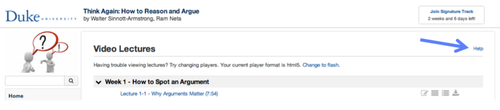
If you’ve recently started a new Coursera course, you might have noticed a small “Help” link in in the corners of your course pages and on course resources such as videos and quizzes.
This link is part of a new set of support features that we’ve been rolling out to new courses over the past month. We’d like to tell you a little bit more about these features and how you can use them to get help with any problems in your course!
Feature 1: “Help” links
You can use the “Help” links to get troubleshooting tips and answers to common questions about our platform and policies.
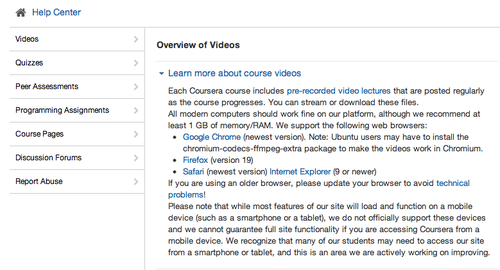
Clicking on “Help” will open our course Help Center in a new tab. You’ll be taken straight to the section of the Help Center related to the page you’re on – for example, if you’re on a video page, you’ll immediately see help topics (along with tips and support documentation) related to video lectures. You’ll then be able to browse specific questions and problems related to that page – or select a different topic if you need help with something else.
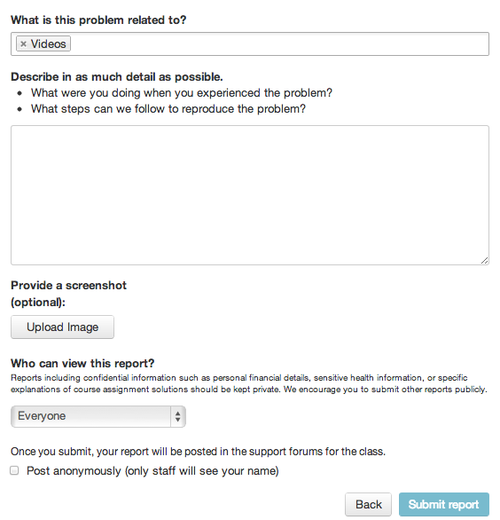
Depending on the type of problem you’re reporting, we may also invite you to let us know about the problem directly. When you submit a direct report, we’ll automatically note basic information such as your browser version, and we’ll ask you to describe the problem in detail – please do your best to provide all the specifics, and if possible, upload a screenshot that captures the problem as it appears on the page!
Feature 2: Support Forums
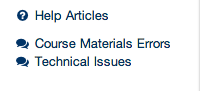 When you submit a report, it will automatically be sent to one of two support forums, which are accessible from the links at the bottom of the left-hand course navigation bar [see image to the left].
If you report a problem with the course materials that should be addressed by course staff – e.g., “This week’s videos not posted” – your report will create a new thread in the “Course Materials Errors” support forum. Reports of technical problems that require Coursera’s attention – e.g., “Error message when opening video” – will create new threads in the “Technical Issues” support forum.
Next, Coursera will be notified of each new thread that’s created in the support forums, and we will look into any reports of errors or technical issues that are disruptive to the course. We’ll also be reading and replying to the threads in each course that have the highest rates of student activity (number of posts, comments, and upvotes) to ensure that common problems are addressed and frequently asked questions answered.
The Role You Play
Make sure we hear you! Although we can’t respond directly to every report, there are a few things that you can do to make sure your message gets through to us:
• Add posts, comments, and votes to existing threads:
Before you submit your own report, look for related existing threads in the support forums (you’ll see some suggested threads when you identify your specific problem through the “Help” link). If another student has already reported a similar problem, add a comment (“me too!”) or upvote the thread instead of creating a new report. When we see a lot of comments and upvotes on a thread, we’ll know that many students had the same problem, and we’ll prioritize the thread for a quick response.
• Stay on topic:
If you do have a brand-new problem, do submit a new report to start a new thread! Don’t report a different problem on an existing thread, as this makes it harder for our support staff to keep track of problems and respond. Likewise, don’t use the support forums for casual conversations or open-ended discussions, as this makes it harder for other students to find reports of problems similar to their own.
• Help each other:
If another student reports a problem that you’ve already solved, don’t be shy about chiming in with a solution! By helping each other with common questions and basic troubleshooting, you free up our staff time to tackle big-ticket items and platform bugs. Other students will thank you profusely (and so will we)!
• Resolve your reports:
If you fix the problem on your own or if you return to your report thread to find that your question’s been answered by a staff member or another student, please take a moment to resolve the thread! You’ll see a “Resolve” checkbox below the “New post” field at the bottom of the thread – check the box and post a short thank-you or an update on the problem so that we know it no longer needs our attention.
We hope these new tools help you get your questions answered (and we hope they help us quickly identify problems that need to be fixed)! We’ll be iterating on the finer points over the coming weeks, so you can expect to see a few changes to the look and feel of this system – but the basic steps will stay the same. Feel free to comment on this post if you have any ideas or suggestions for improvement!
–Coursera Operations and Support Team